
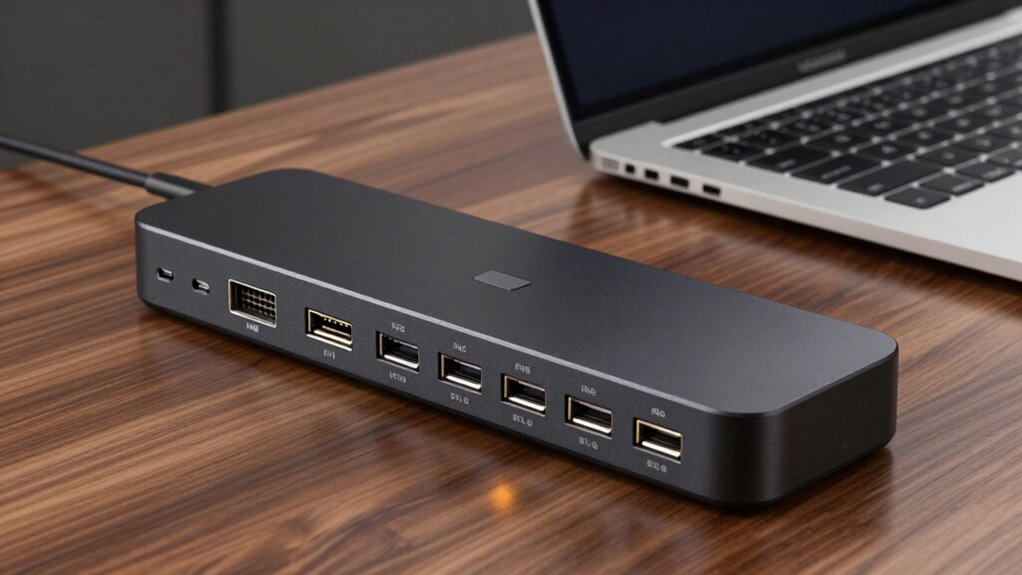

Docking station ports help you connect multiple devices easily, keeping your workspace organized and efficient. They typically include USB-A and USB-C ports for peripherals, HDMI or DisplayPort for external monitors, Ethernet ports for stable internet, and audio jacks for audio devices. Some docks also offer wireless charging pads and power delivery to keep your devices charged. Understanding these ports can improve your setup—continue exploring to discover more ways these features can benefit you.

Prime made for students and young adults
- Fast, free delivery for dorm and study essentials
- Prime Video and Amazon Music included
- Member-only deals
Key Takeaways
- Docking stations typically include USB-A and USB-C ports for peripherals and data transfer.
- HDMI or DisplayPort outputs connect external monitors for expanded display options.
- Ethernet ports provide stable wired internet connections for reliable network access.
- Wireless charging pads enable charging compatible devices without cables.
- Power delivery ports supply energy to laptops and accessories simultaneously, reducing clutter.
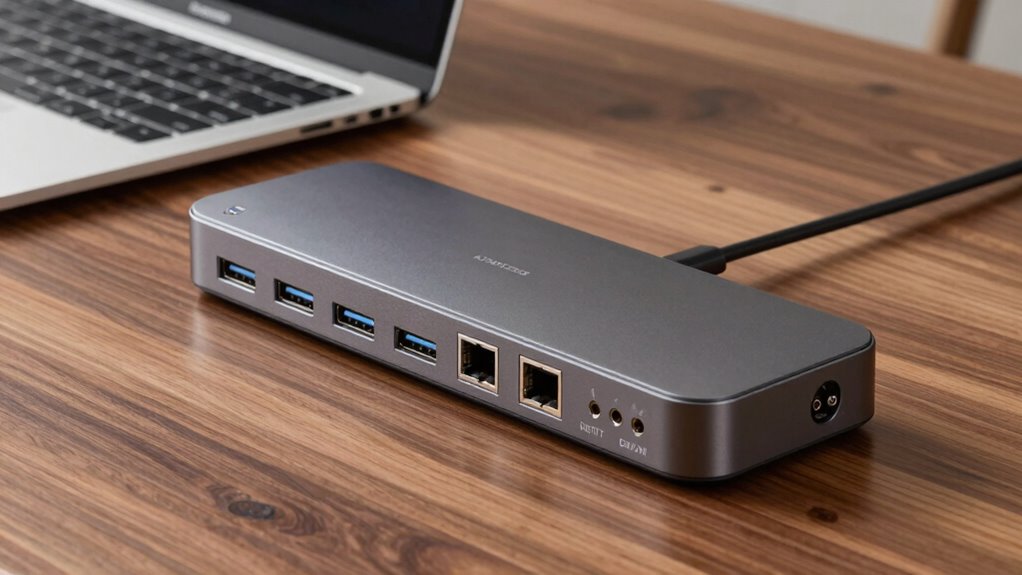
Ever wondered how a docking station seamlessly connects all your devices? It’s all about the ports and features built into these versatile hubs. When you set up a docking station, you’re creating a centralized hub that simplifies your workspace by providing multiple connection options. Among the most impressive features are wireless charging and power delivery, which make your setup more efficient and clutter-free. Wireless charging allows you to power compatible smartphones and accessories without fiddling with cables, keeping your desk tidy. Power delivery, on the other hand, guarantees your laptop receives enough power through a single connection, enabling you to charge your device while using other peripherals simultaneously. Multiple connection options ensure your workspace remains flexible and efficient.
Docking stations typically come equipped with a variety of ports to suit different needs. USB ports are the most common, offering both USB-A and USB-C options. USB-C ports, in particular, support high-speed data transfer and power delivery, making them essential for modern laptops and devices. HDMI or DisplayPort outputs connect your laptop to external monitors, expanding your screen real estate and improving productivity. Ethernet ports provide reliable wired internet connections, which can be faster and more stable than Wi-Fi, especially in busy networks. Audio jacks allow you to connect speakers or headphones directly to the docking station, eliminating the need for separate adapters. Additionally, many docking stations incorporate advanced connectivity features, enhancing overall performance and compatibility. Incorporating connectivity standards ensures that your setup stays compatible with the latest devices and technologies. Understanding port types can help you choose the right docking station for your specific needs.
The integration of wireless charging within a docking station is a game-changer. You simply place your compatible smartphone or wireless charging-enabled accessory on the designated pad, and it starts charging immediately. This feature is perfect for maintaining a clutter-free workspace, as it reduces the number of cables and chargers you need to manage. Power delivery is equally essential, especially if you work on a laptop that demands significant wattage. By connecting your laptop to a port that supports power delivery, you guarantee it stays charged even while you’re working on demanding tasks. This eliminates the need for multiple chargers and simplifies your setup. A universal compatibility approach in docking station design ensures that a wide range of devices can benefit from these features.
USB-C docking station with power delivery
As an affiliate, we earn on qualifying purchases.
As an affiliate, we earn on qualifying purchases.
Frequently Asked Questions
Can I Connect Multiple Docking Stations to One Laptop?
You can connect multiple docking stations to one laptop, but it’s not always straightforward. Wireless connectivity can help, reducing cable clutter and making setup easier. However, peripheral compatibility might become an issue, as not all docks support the same devices or features. To avoid problems, check your laptop’s ports and docking station specifications. Using a powered USB hub or Thunderbolt daisy-chaining can also expand your setup effectively.
Are Docking Station Ports Compatible With All Laptop Brands?
You can’t assume docking station ports are compatible with all laptop brands, as compatibility standards and port configurations vary. Some docks work seamlessly with certain brands, while others don’t fit the bill. It’s essential to check your laptop’s port types and the docking station’s specifications. Think of it as fitting puzzle pieces together—you need the right shape to make everything click. Always verify compatibility before making a purchase.
Do Docking Station Ports Support Charging the Laptop?
Yes, many docking station ports support charging your laptop through power delivery, but it depends on the port compatibility. Not all ports provide power, so check if the docking station explicitly mentions power delivery or charging capabilities. USB-C ports often support this feature, making it easier to keep your laptop charged while connected to peripherals. Always verify the specifications to confirm your docking station meets your charging needs.
How Do I Troubleshoot Port Connectivity Issues?
To troubleshoot port connectivity issues, first check device compatibility to make sure your peripherals work with the docking station. Then, inspect the ports for dust or debris and clean them gently with compressed air or a soft brush. Restart your laptop and reconnect the devices. If issues persist, update your device drivers or firmware, and verify the docking station’s power source. Proper port maintenance and compatibility checks often resolve most connection problems.
Are There Any Security Concerns With Docking Station Ports?
Yes, there are security concerns with docking station ports. You should guarantee port security by disabling unused ports to prevent unauthorized access. Data encryption is essential when transferring sensitive information through these ports, so use encrypted connections whenever possible. Always keep your docking station’s firmware updated to patch security vulnerabilities, and consider using port security features on your laptop or network to limit access and protect your data.
Conclusion
Now that you know what each port on a docking station does, you might think it’s unnecessary or too complicated. But trust me, having the right ports easily accessible can make your work much smoother and more efficient. Even if you’re worried about clutter, selecting a docking station with only the ports you need keeps things simple. Once you get used to it, you’ll wonder how you ever managed without it.
Fall Picks
fall essentials
As an affiliate, we earn on qualifying purchases.